
Ten tips for keeping kids safe on smartphones

There's no doubt that smartphones are the must-have accessory of our generation, but how do you make sure your child is staying safe online, looking after their device and not running up a fortune in purchases?
Here are ten tips to help set your mind at rest when it comes to kids and smartphones:
1.Ask yourself – What’s the best age for a young person’s first smartphone?
It's a question no generation has had to deal with before, so you won't find the answer in your parenting books.
First, remember smartphones aren't toys - they're powerful, multi-use gadgets that give the owner a certain amount of independence. In many ways, it's like giving them a TV, a games console, a private phone line and their own computer all at once.
Is your child sensible enough not to run up bills on the app store, or to use the internet and social media by themselves? Will they use it at appropriate times, will it distract them from schoolwork and can they be trusted not to lose it?
Studies suggest most children today have a smartphone at age 10 – but there's no simple answer - it really comes down to your own parenting style and whether you think your child's mature and responsible enough.
2. Consider a basic features phone first
If all you want is a way to stay in contact, a non-smartphone – such as the recently relaunched Nokia 3310 – will do the job. Basic models are super cheap and durable, work great for calling and texting, and can serve as a 'training wheels' phone until you're confident they can handle a smartphone.
3. Talk to them about the risks of social media
Most people use their phones for social media – kids especially. It can be a great way for them to keep in touch with friends, but there are risks involved.
As well as the obvious rules about talking to strangers, which apply just as much online as in real life, make sure they understand that the information they put online can be seen by other people. You may want to go through their privacy settings together with them and show them how much information anyone can see.
Facebook has its own tips for parents. Don't forget, it's not just about Facebook and Twitter, Whatsapp, and Snapchat these days – newer apps like Kik can also appeal to youngsters.

4. Let them know the best ways to use social media
The social media chat is also a good opportunity to let them know the best ways to interact with friends. Make sure children know how to block messages from anyone they don’t want to talk to. If they are receiving troubling messages from other children in school, make sure their teachers are aware of the situation.
Remember, your child could also be involved – it might just feel like harmless fun to them and their friends. It's important for kids to understand that what they say and do online impacts people in the real world.
For more information, see the resources provided by Bullying UK.
5. Keep an eye on app store purchases
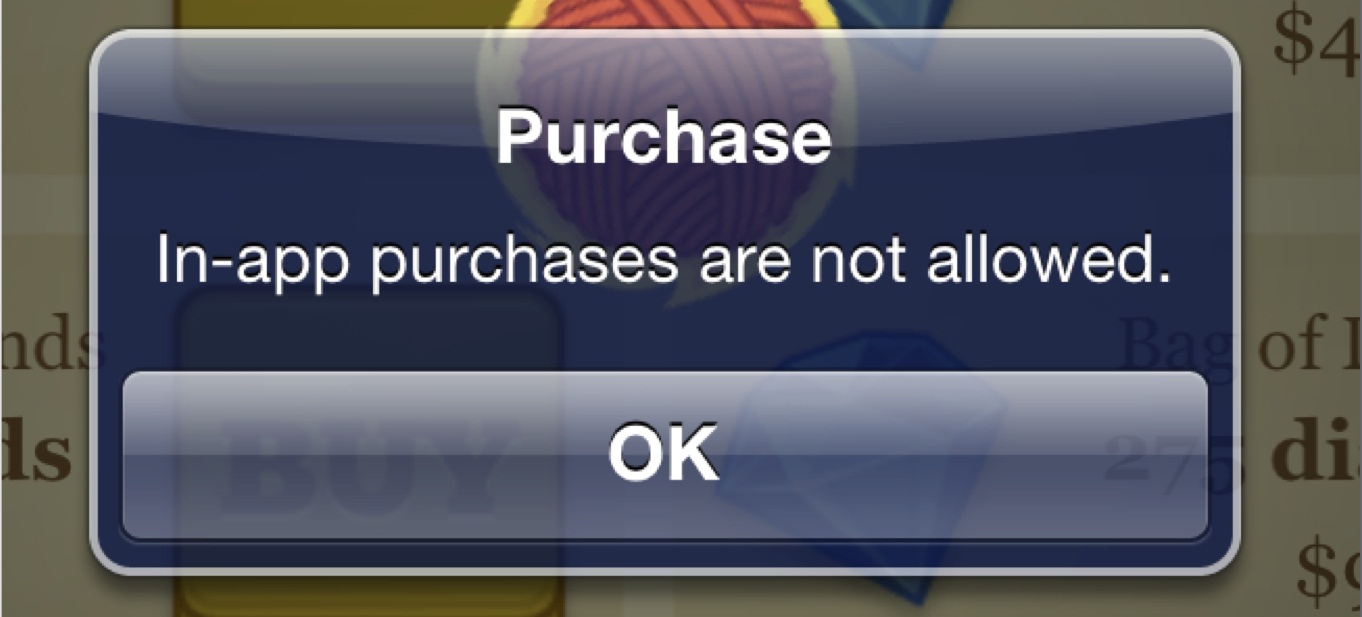
App stores are full of temptations for young people – and many 'free' apps contain in-app ‘micro purchases’ that you might not be aware of.
Because no physical money is changing hands, and the amounts are relatively small, kids might not notice how much they're spending until they've run up a huge bill. It may be a good idea to set a monthly or weekly allowance for app store purchases.
On iOS devices, you can set a password from Settings > General > Restrictions to control what goes on the device, and there's a similar feature on the Google Play Store's Settings menu.
6. Set usage limits
If you're concerned about your child's screen time, you might want to set rules – just as you would with video games or TV. Some parents ban screens for an hour or two before bedtime, others set daily limits or situations – such as mealtimes and family time – when phones and other devices aren't allowed.
If your child is prone to texting their friends or playing games late into the night, consider making them hand their phone in before bed.
7. Take precautions against viruses
If your child is allowed to download apps and other content, there's a risk they could download a virus or some other form of malware. Just like computers, phones can be infected by programs that steal personal information and passwords, or send messages and emails by themselves.
Some phones come with built-in virus protection, but if you need an external app, these ones can help. Some antivirus software also comes with useful features like a phone locator if it goes missing.
Lookout (Android and iOS)
Malwarebytes Mobile Security (Android)
Avast for iOS (iOS)
8. Consider mobile ad blocking
An often overlooked way to keep kids safer online, mobile ad blockers help filter out one of the most pervasive sources of questionable content – adverts. While many ads are genuine, some are gateways for spyware and malware, while others might lead to pornography and other content you don't want your children to see.
Ad blockers like Adguard and Adblock Browser simply stop ads from appearing in the first place – so there's no need to worry about them seeing something they shouldn't.
9. Use built-in parental controls
Most phones let you set up a password-protected profile as the owner of the phone, and then make a secondary restricted profile for your child to use.
On Android, this is usually done by going to Settings and scrolling down the list to Users, then Add User. Choose Restricted Profile and you'll be able to set up a profile limiting which apps they can use and screen the maturity level of the apps that can be downloaded. You may also want to enable the setting that only allows apps from the official Google Play store.
On iOS, go to Settings, then General, then Restrictions and enter a password. From here you can limit access to apps, as well as what personal data apps can see, and control whether they can add friends in multiplayer games.
10. Use parental control apps
Parental control apps help you regulate what your child can see and do on their smartphone. Most are pretty easy to use – just install them, select the settings you want and the app does the rest.
Qustodio works on Android, iOS and Windows phones. The free version lets you set rules, block pornography and inappropriate content, while the paid app also includes SMS monitors.
Zoodles is a browser designed for kids up to eight years old, and is also available on Android, iOS and Windows. It filters content to provide a safe and age-appropriate experience, and can even give updates on how they're progressing in different subjects.
Kids Place (Android and Kindle only) offers a simple way to PIN-protect what your child does on their phone. It blocks in-app purchases and prompts for a password when installing new apps